 PocketPress
Photo size guide · By Corzfree
How to compress a photo to 200 KB on Android
An upload form asks for a photo under 200 KB, but the picture on your phone is much larger. Start with the form’s requirements, then make a smaller copy you can check before sending.
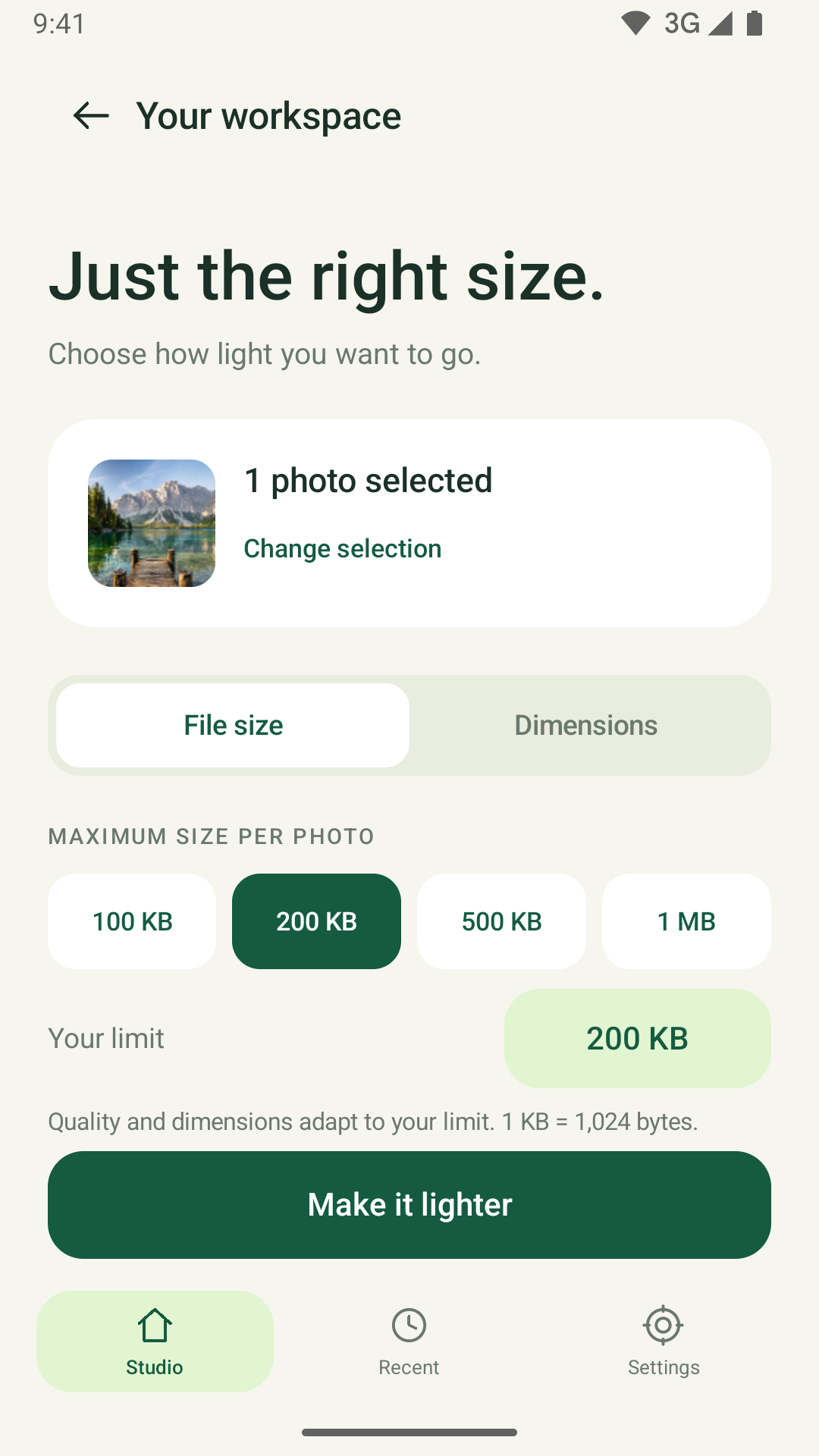
The quick method: select your photo in PocketPress, choose a 200 KB target, process it, and check the actual file size and image quality. Save the new copy when it meets your needs. Your original stays unchanged.
A target is a starting point. The achievable size depends on the image, format and settings; very small files can lose visible detail.
1. Check more than the size limit
Before compressing, read the destination’s requirements. A file can be small enough and still be rejected for its format or dimensions.
- File size: is the limit “under 200 KB,” or a range with a minimum as well?
- Format: does the form accept JPEG, WebP, or only a particular format?
- Dimensions: are there minimum or maximum width and height requirements?
- Visible detail: will text, faces or other important parts remain clear at the required size?
2. Select your photo in PocketPress
Open PocketPress, the Android photo compressor, and choose your photo using Android’s photo or document picker. You can select up to 20 images for a batch, but check each output if a form has a strict limit.
Compression of local photos happens on your device. If the original is stored with a cloud provider, it may need to download before processing.
3. Choose a 200 KB target and an accepted format
Set the target file size to 200 KB. PocketPress adjusts compression and, where needed, image dimensions to work toward that target. For a form that asks for JPG or JPEG, choose JPEG output. Use WebP only if the destination accepts it.
You can also adjust image quality or the longest edge. Lower quality can reduce detail; smaller dimensions reduce resolution. Keep any minimum dimension requirement in mind.
4. Check the actual result
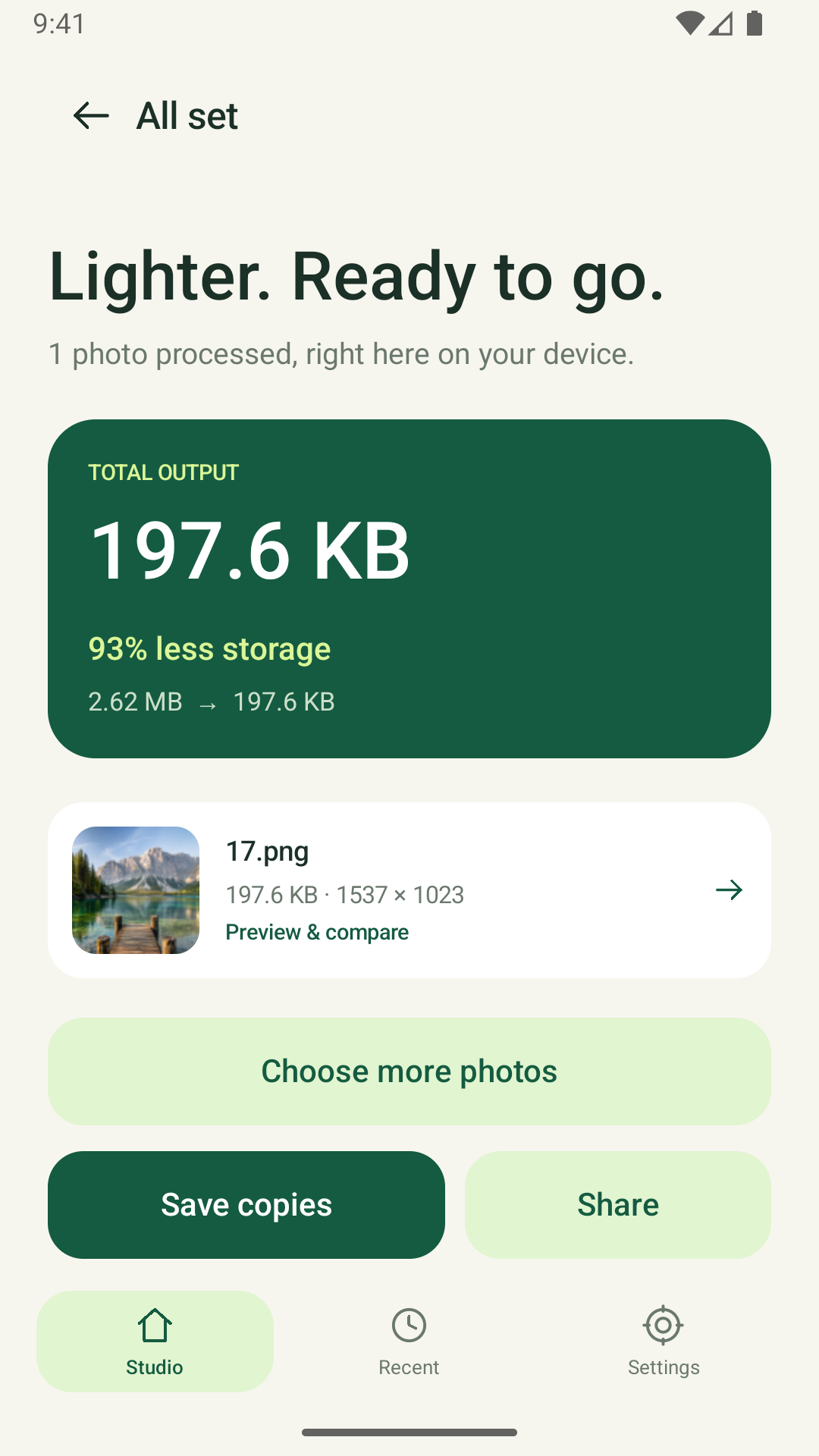
Compare the original and compressed image. Check the reported output size and dimensions, then look closely at any important detail. If the image is still too large, try a smaller target or dimensions and compare again.
For a strict “under 200 KB” limit, leave some room below the maximum and check the saved file. Different tools may round displayed sizes differently. If the result is too blurry to use, try a larger target within the allowed limit or choose a clearer source photo.
5. Save and upload the new copy
Save the compressed image to your device or share it through Android. When uploading, select the new copy and check the form’s preview. PocketPress leaves the source photo unchanged.
Exported copies have EXIF metadata removed. This does not remove information visible inside the photo, such as text or faces; review the image itself before sharing.
Common questions
Can I use the same steps for a 100 KB limit?
Yes. Choose 100 KB as your target instead, then check the output. A lower limit can require a larger reduction in dimensions or detail, so a result that works at 200 KB may look different at 100 KB.
Why does a smaller photo still fail to upload?
Check the saved file’s actual size, accepted file type and required dimensions. Make sure you selected the compressed copy. If those match, read the form’s error message for any other requirements.
Can I compress photos without uploading them to a website?
Yes. PocketPress processes selected photos on your Android device and does not send them to a developer-operated server. Advertising services use the internet. See the privacy policy for details.
Will compression preserve all image quality?
No. Compression is not lossless. Preview the result, keep your original and use the smallest copy that still meets your needs.
Make a smaller copy with PocketPress
Target file sizes, batch resizing and before-and-after previews on Android. No account required. Contains ads.
Get PocketPress on Google Play